
TaniTerm for Windows
The terminal built for network engineers.
SSH, Telnet, serial consoles, SFTP and FTP in one fast Windows app — with built-in FTP and TFTP servers, saved sessions, a command library, and logs that keep themselves.
Version 1.2.3 · 125.4 MB · Windows 10 or 11 (64-bit) · Download for ARM PCs (free trial)
One license works on regular and ARM PCs — buy once, then download the version for your PC.
If Windows shows “Windows protected your PC”, click More info, check the publisher is Tanicom, LLC, then Run anyway. Windows shows this for newer apps.
🎁 Give TaniTerm as a gift — you choose who and when after checkout
Every SSH cipherModern and legacy, for old gear
Serial & TelnetConsole cables, any baud rate
SFTP, FTP & TFTPClients and servers built in
Network adapters built inSet your IP in one click
All in one
The tools you usually juggle, in one window
Terminal
SSH, Telnet, and serial consoles — every cipher, any baud rate.
File transfer
SFTP, FTP, and FTPS with drag and drop and a transfer queue.
Servers
Built-in FTP and TFTP servers for configs and firmware.
Network adapters
DHCP or static IP in one click, with saved profiles for repeat devices.
Sessions
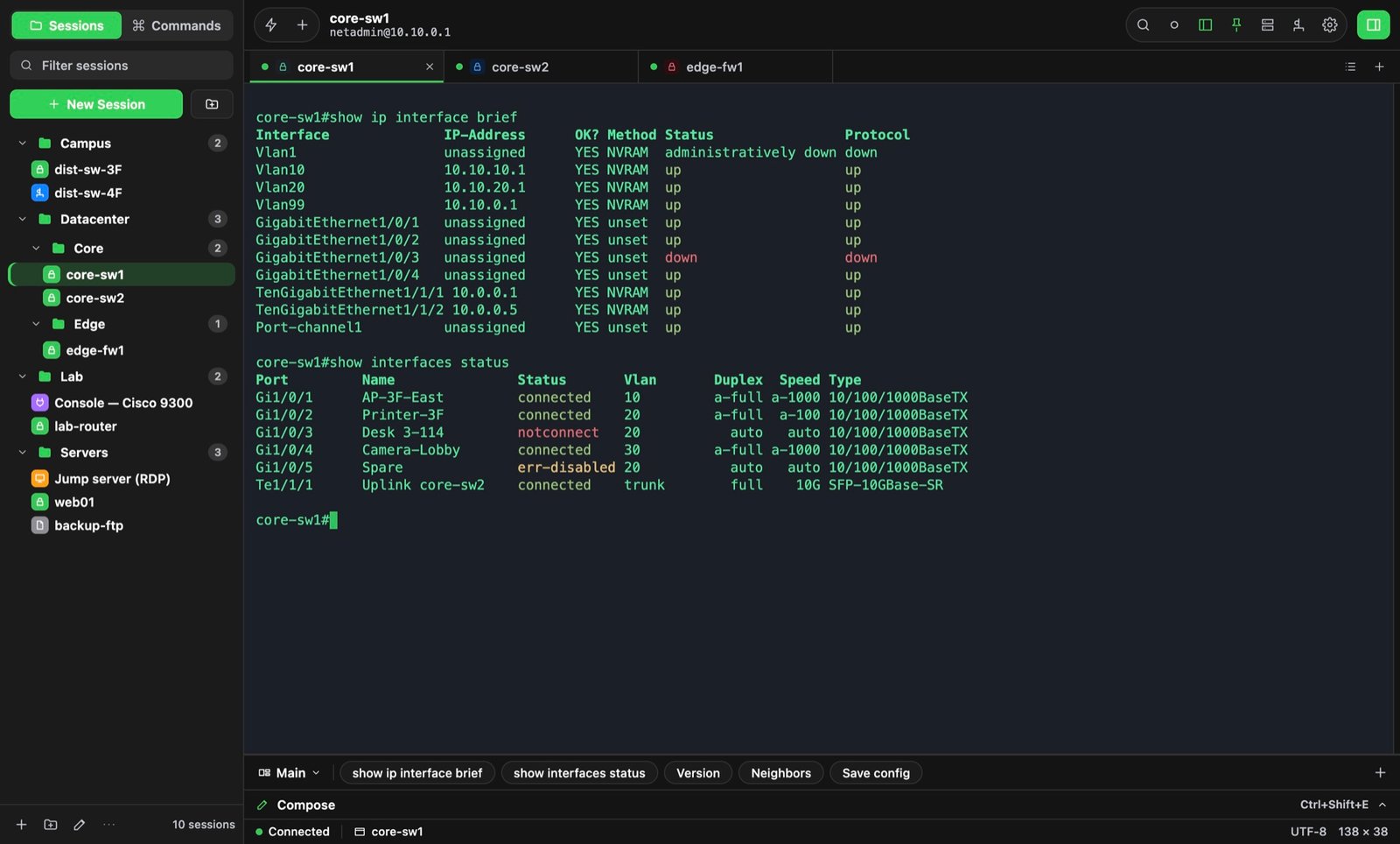
Every device, one click away
Keep hundreds of switches, routers, firewalls, and servers in folders. Give each environment its own colors so production never looks like the lab.
- SSH keys, agent, jump hosts, port forwarding
- Legacy ciphers for old devices — 3DES, CBC, ssh-rsa
- Drag to arrange sessions, commands, and tabs
- 18 color schemes, or make your own
Compose
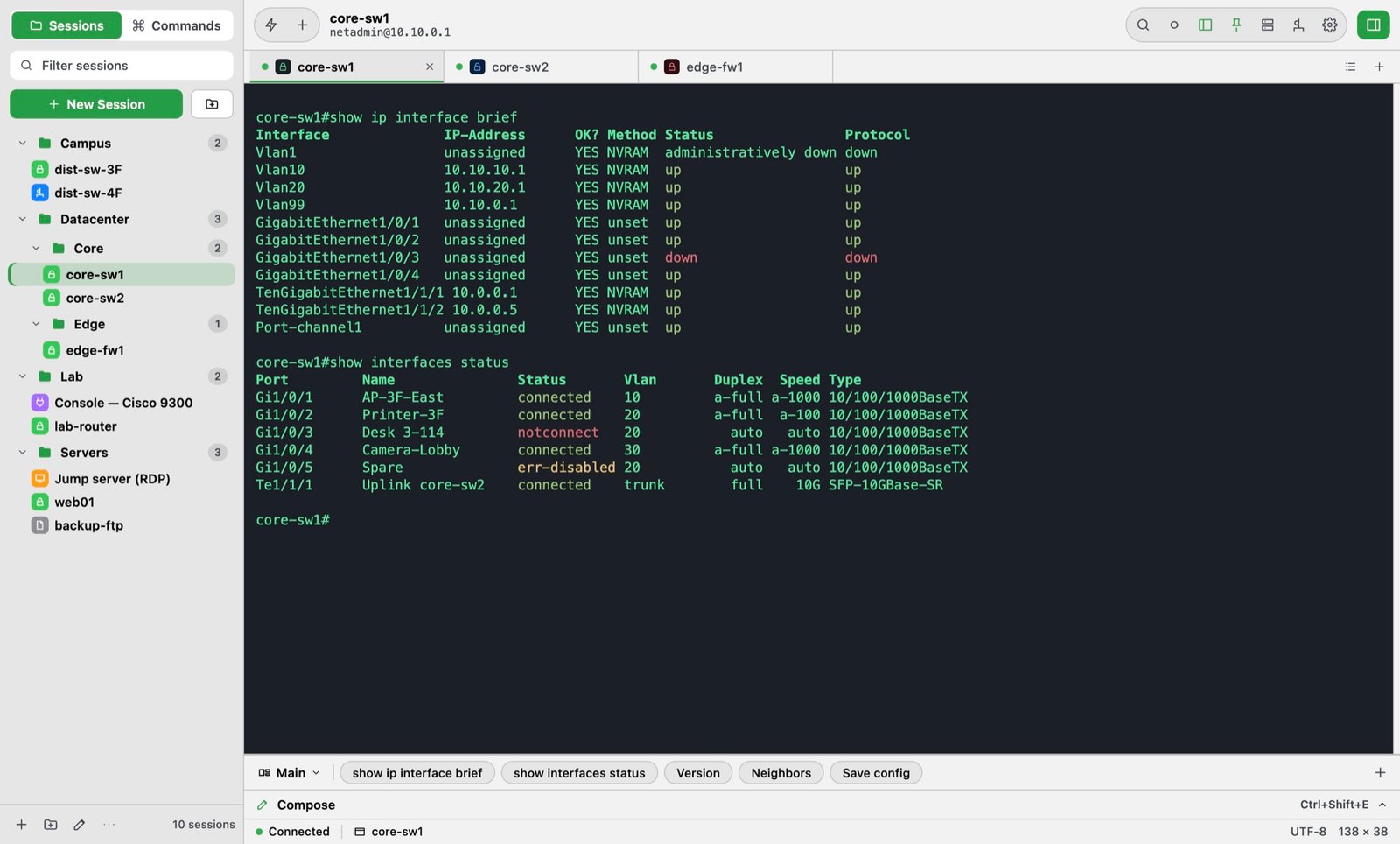
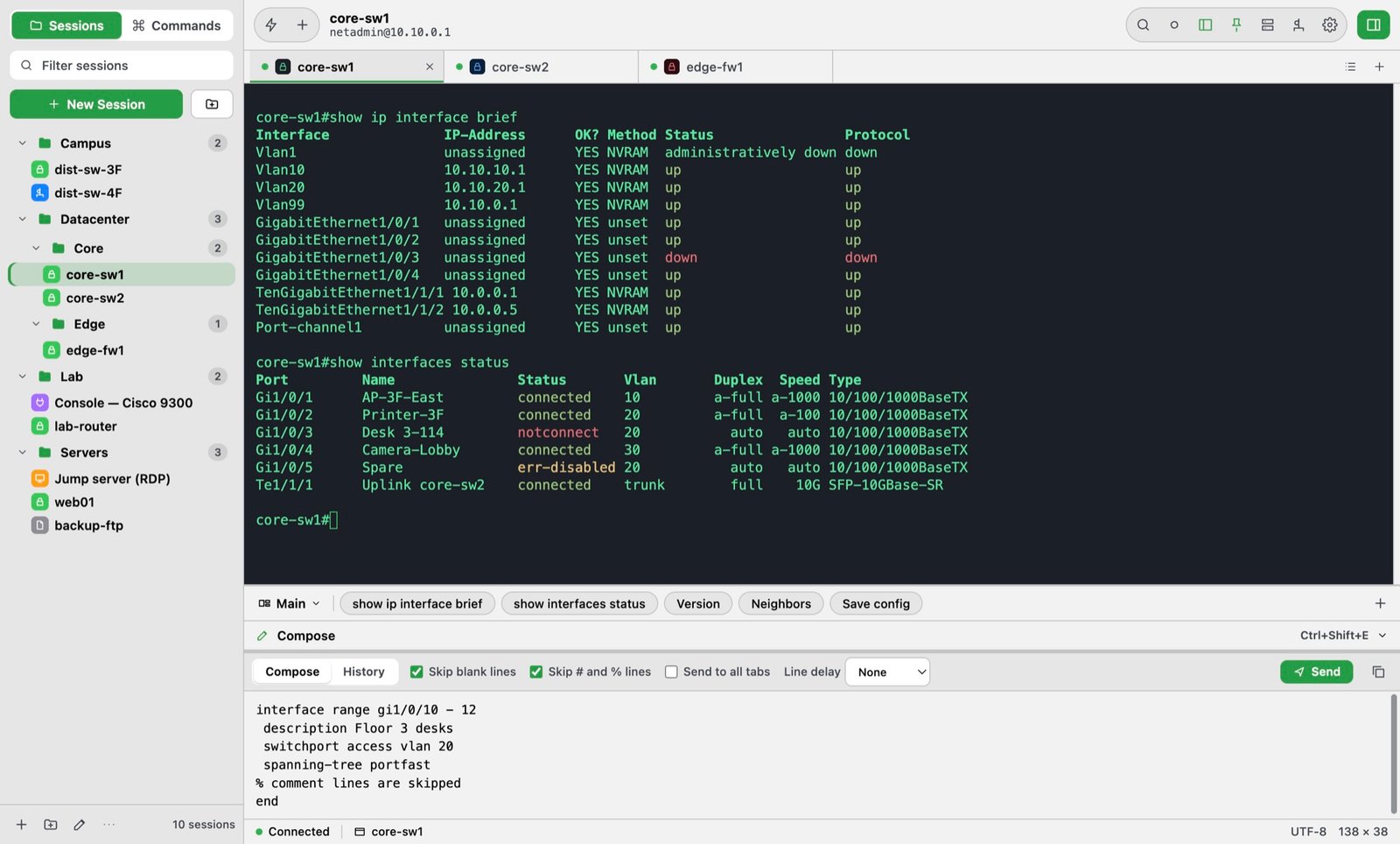
Check it before you send it
Paste a whole config into Compose, look it over, and press Return. TaniTerm flags smart quotes, long dashes, and hidden characters that break CLI commands — and fixes them in one click.
- Skip # and % comment lines and blank lines
- Line and character delays for slow devices
- Send to one tab or every tab at once
- History of everything you sent
SFTP & FTP
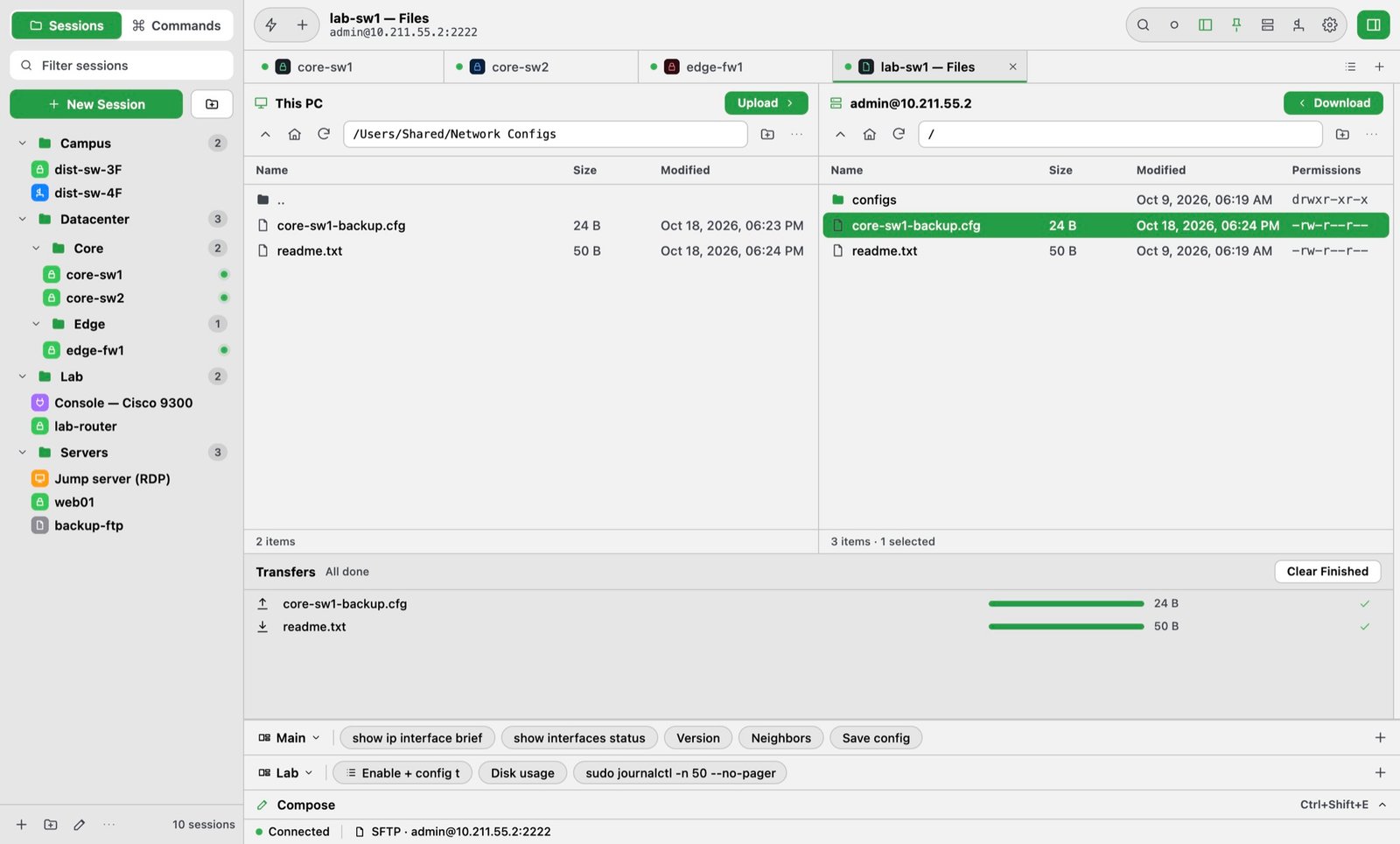
Files without another app
Open SFTP from any SSH session — same login, keys, and ciphers — or save FTP and FTPS sites with FileZilla-style settings. This PC on the left, the server on the right, and a transfer queue below.
- SFTP, FTP, and FTPS (explicit or implicit TLS)
- Drag and drop in either direction
- Rename, delete, new folder, permissions
- Replace or skip existing files
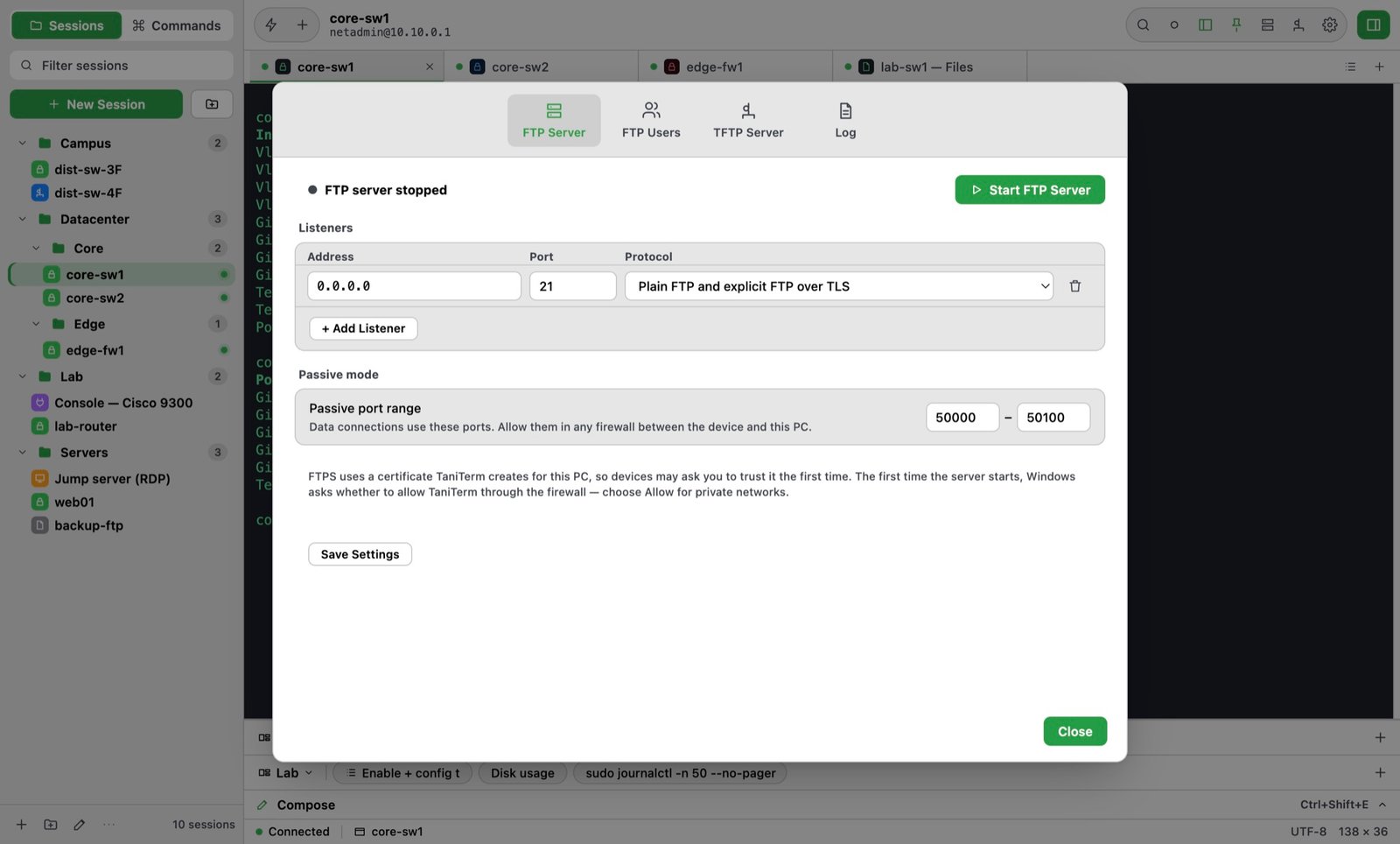
Servers
Copy configs and firmware in one click
Start the built-in FTP or TFTP server and let switches and routers copy straight to and from this PC — no extra server software. The toolbar button turns green while a server is running.
- FTP server with users and shared folders (read-only or read/write)
- FTPS with a certificate TaniTerm makes for you
- TFTP server with large-block transfers
- A live log of every login and transfer
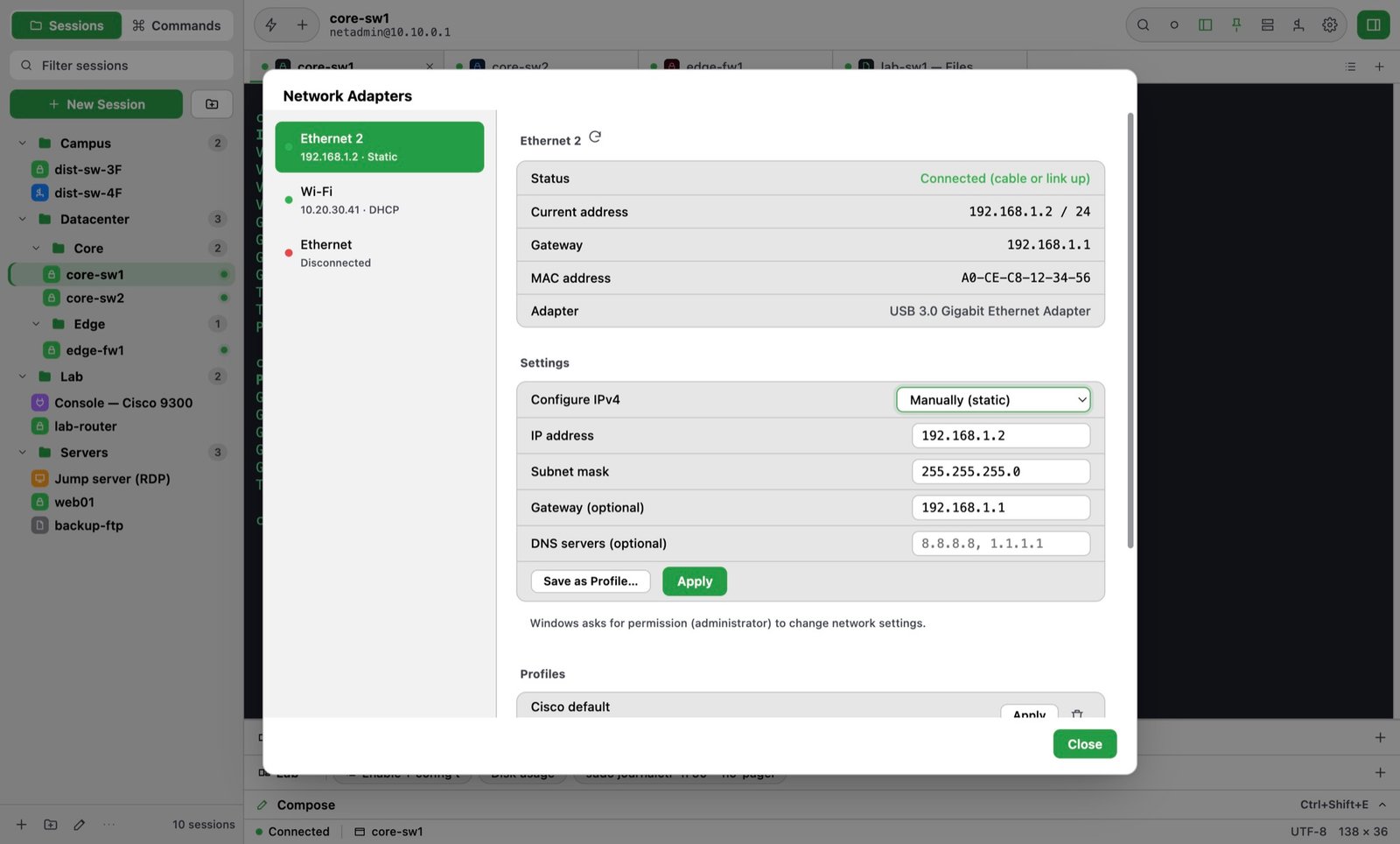
Network Adapters
Change your IP without leaving the terminal
Plug into a switch, pick your Ethernet adapter, and set a static IP — or go back to DHCP — right inside TaniTerm. No more digging through Network Connections. Save a profile once for each device you set up again and again, and switch with one click.
- Save profiles for repeat devices — one click to apply
- DHCP or static IP, mask, gateway, and DNS
- Sessions can set the IP before connecting
- Built-in ping to test the device
Find
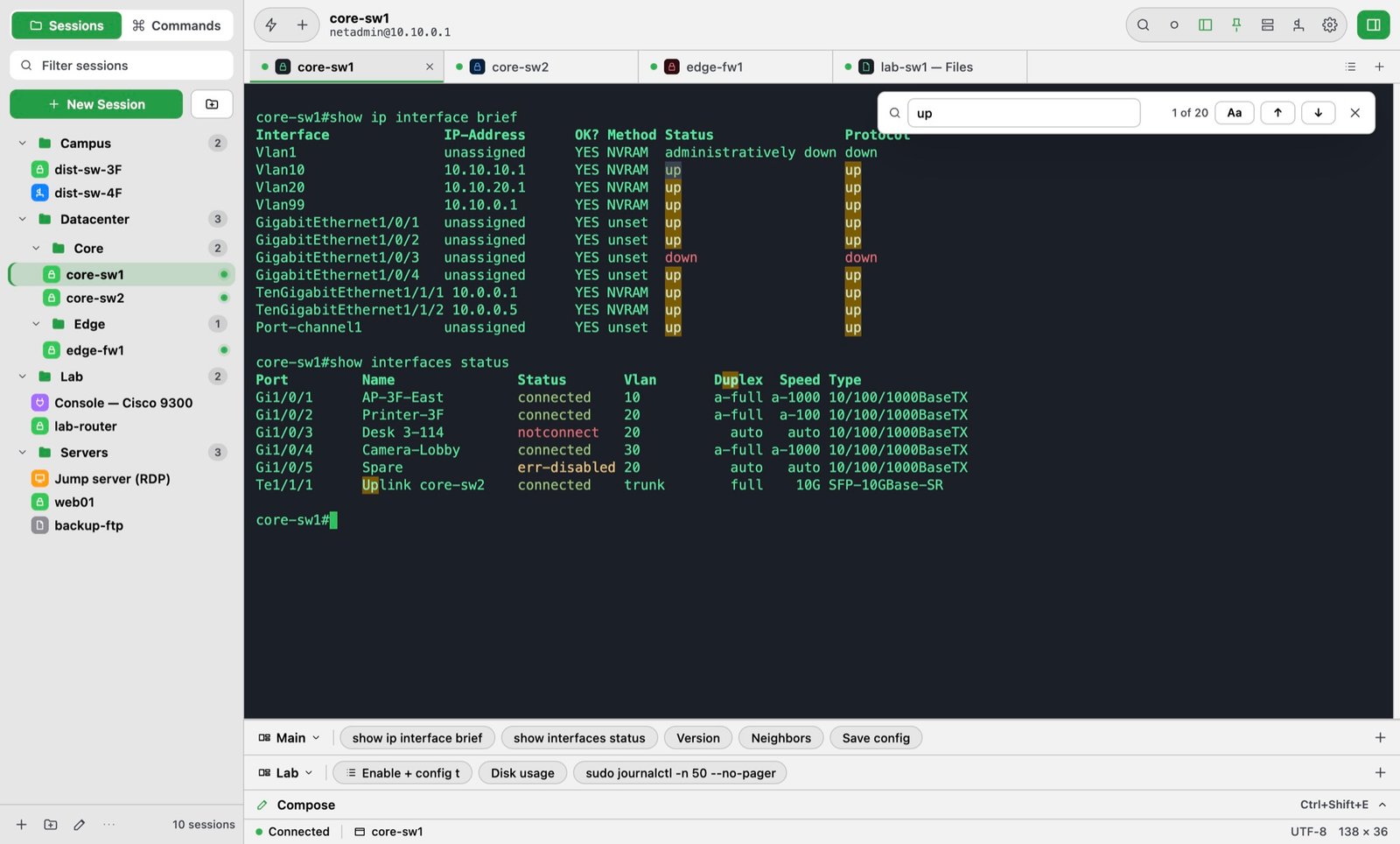
Find it in the scrollback
Search everything a session has printed — every match is highlighted, with a count and next/previous. Keep a separate log of just the commands you typed, too.
- Search button in the toolbar, or Ctrl+Shift+F
- Match count and case-sensitive search
- Commands-only log, a new file each connection
- Passwords are never written to the log
Layout
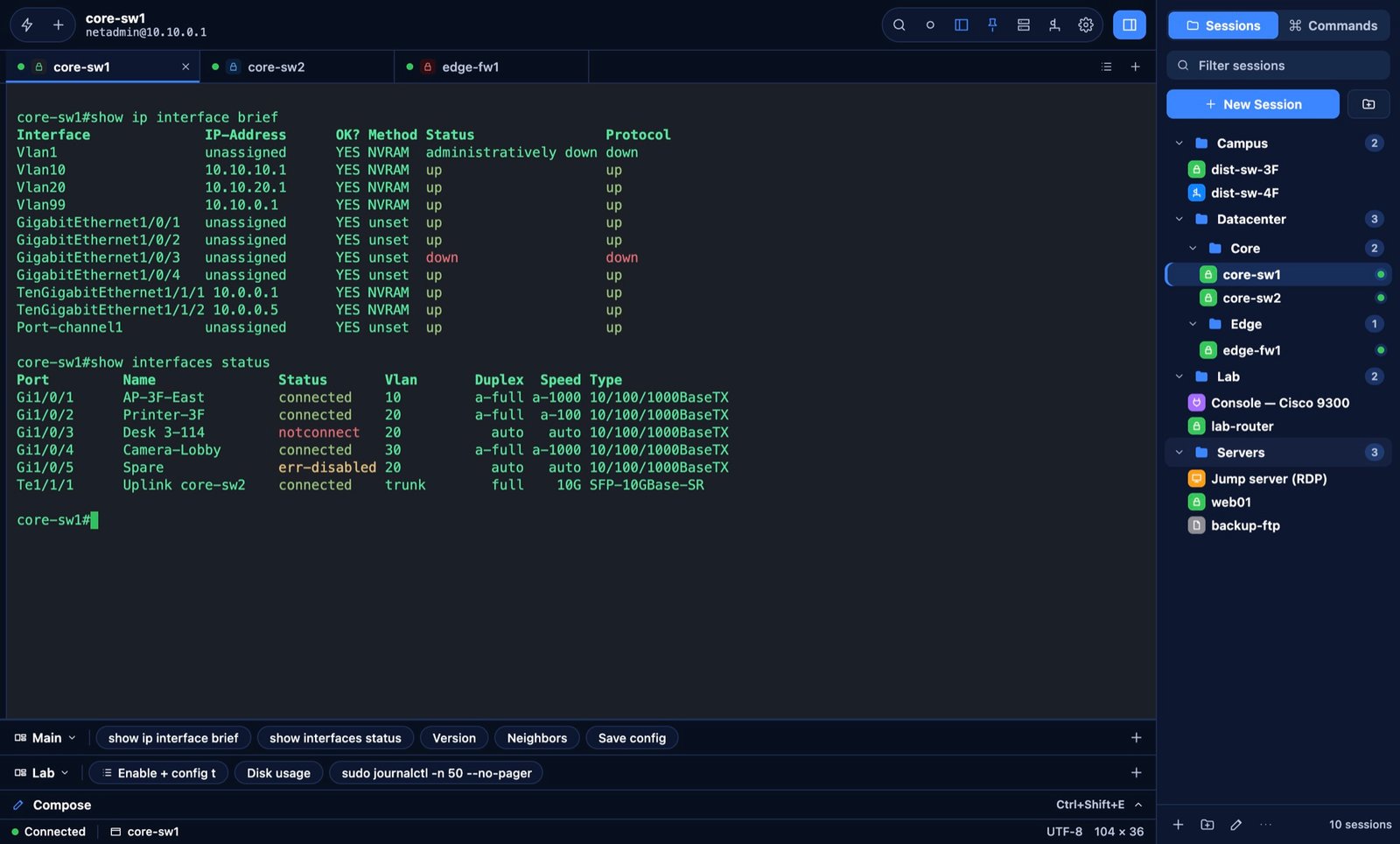
Arrange it your way
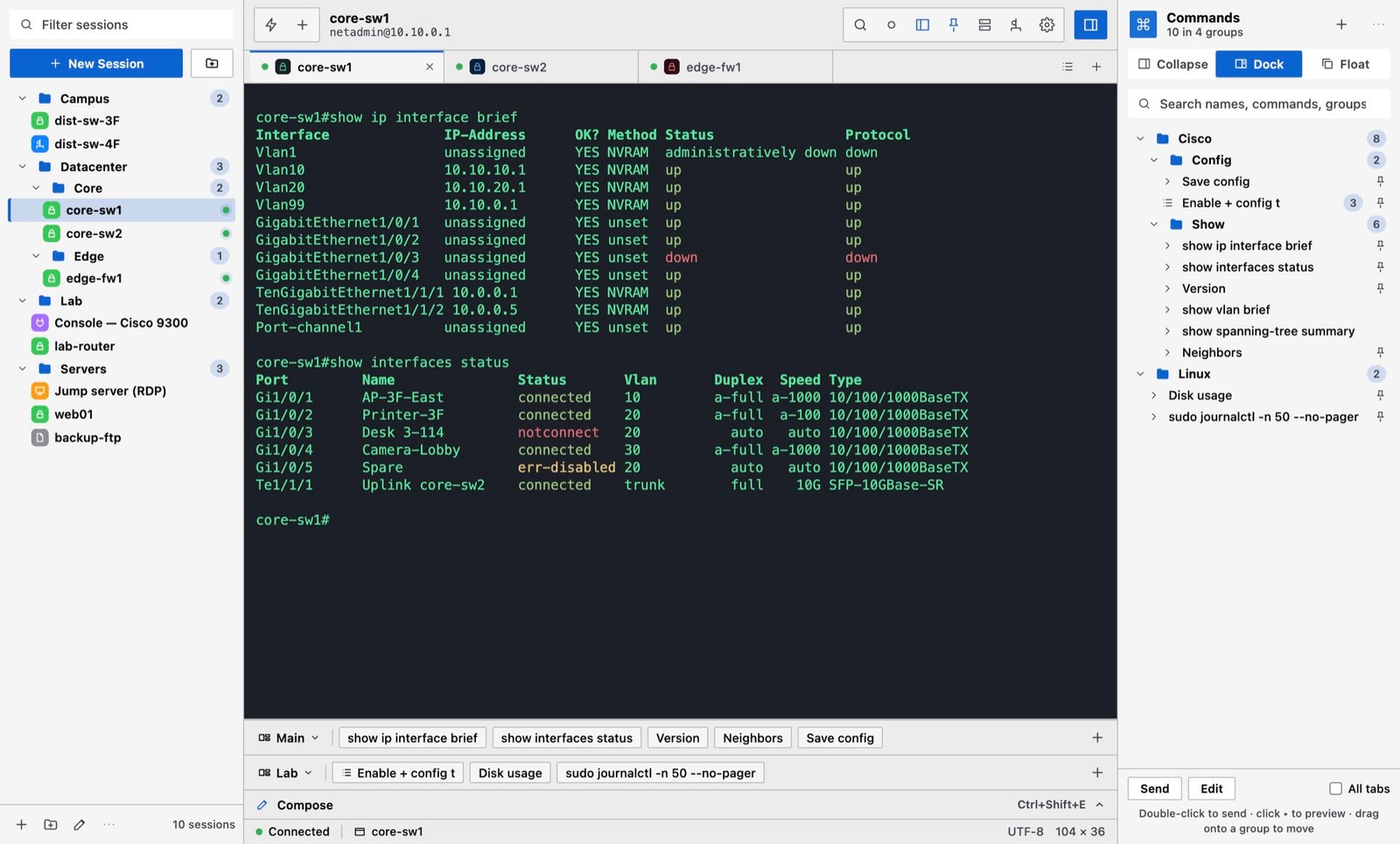
Put Sessions and Commands on either side, or both on one side with tabs for a wider terminal. Commands and Compose can also float in their own windows.
- Four panel layouts, switch any time
- Float Commands or Compose on another screen
- Stacked button bars you can switch
- Jump to any open tab from the tab list
Themes
A look that suits you
Choose the app theme separately from each session’s terminal colors — from TaniTerm Dark to a compact Classic look that feels at home next to other Windows tools.
- TaniTerm Dark and Light
- Classic and Classic Dark (compact)
- Midnight Blue
- Or follow Windows’ light/dark setting
See it in action
Short how-to videos
And everything else
Made for long days on the console
Command library
Thousands of commands in nested groups. Pin favorites to the button bar; double-click to send.
Automatic logging
Log every session to the folder you choose, with optional timestamps on every line — plus an optional log of just the commands you sent.
Serial consoles
USB-serial adapters at any baud rate, parity, and flow control — with Send Break.
Auto login
Saved passwords encrypted for your Windows account and expect/send steps for enable prompts.
Remote desktop
Open RDP and VNC sessions from the same list as your terminals.
Copy on select
Highlight text to copy it. Paste-ready output, with Save Output for whole sessions.
Step-by-step commands
Wait for a prompt, type, wait again — run a whole login or config sequence with one click, with {password} filled in for you.
Button bars
Stack several bars of one-click buttons, switch a bar to another set, and drag buttons into order.
Ready for company IT
Signed by Tanicom, LLC, no admin rights needed. IT can manage updates and proxies, and activate every computer centrally — even offline.
Your layout, your look
Float or dock Commands and Compose, put panels on either side, and pick an app theme — dark, light, Classic, or Midnight.
Web pages & Java consoles (Beta)
Open a device’s web page in a tab next to its terminal — several ports per device, self-signed certificates trusted once. Java console links (iDRAC, iLO, ASDM) open in OpenWebStart or Java 8.
Share logs
Send a session’s log to a coworker in two clicks — attached to a new Outlook email or copied to paste into Teams, renamed if you like, with a reminder to check it for passwords first.
Pricing
TaniTerm
Sale · Save 50%
$99.00 $49.50
Sale ends December 31, 2026
One-time purchase · no subscription
- Use on 2 computers
- Every feature included
- Free updates for version 1
- 14-day free trial first
Version 1.2.3 · 125.4 MB · Windows 10 or 11 (64-bit) · Download for ARM PCs (free trial)
One license works on regular and ARM PCs — buy once, then download the version for your PC.
If Windows shows “Windows protected your PC”, click More info, check the publisher is Tanicom, LLC, then Run anyway. Windows shows this for newer apps.
🎁 Give TaniTerm as a gift — you choose who and when after checkout
All sales are final, so please try TaniTerm free for 14 days first. Thank you for supporting Tanicom’s independent development — every purchase goes into making TaniTerm better.
How it works
Download & try
Install TaniTerm and use every feature free for 14 days.
Buy
Checkout takes a minute. Your account is created for you.
Get your key
By email, and always in My Account ▸ Licenses.
Activate
TaniTerm ▸ License… and paste the key. Done.
Questions
Can I try it first?
Yes. Download TaniTerm and it runs free for 14 days without a key. Buy any time and paste the key — your sessions and settings stay as they are.
How do I install it?
Run the downloaded TaniTerm .msi installer, then open TaniTerm from the Start menu. Most PCs need the standard (x64) download; Windows on ARM PCs have their own link under the button.
Which download do I need?
Most PCs (Intel or AMD) use the main Download button. PCs with ARM processors — such as Surface Pro X, Surface Pro (Snapdragon), and Copilot+ laptops with Snapdragon X — use the “Download for ARM PCs” link. Not sure? Open Settings ▸ System ▸ About and look at “System type”. The same license works with both.
Windows says “Windows protected your PC”. Is TaniTerm safe?
Yes. TaniTerm is signed by Tanicom, LLC. Windows SmartScreen shows this message for apps it hasn’t seen many times yet. Click “More info”, check that the publisher is Tanicom, LLC, then click “Run anyway”. The message goes away as more people install TaniTerm.
What do I need?
Windows 10 or 11 (64-bit), Intel/AMD or ARM.
I got a new PC. Can I move my license?
Yes. In My Account ▸ Licenses, remove the old computer, then activate on the new one.
How do I get updates?
TaniTerm checks for updates about once a day and installs them with one click — or choose Check for Updates in the Help menu. Updates for version 1 are free.
Does it work offline?
Yes. TaniTerm checks your license online about once a month and keeps working offline in between.
Can I give TaniTerm as a gift?
Yes. Choose “Give TaniTerm as a gift” under the Buy button. After checkout, pick who gets it, add a message, and choose when it’s delivered. You can change the recipient any time until it’s delivered — or until it’s activated.
Can I get a refund?
All TaniTerm sales are final — that’s why every feature is free to try for 14 days first. Please make sure it works for you before you buy. If you were charged twice, or your key doesn’t work and we can’t fix it, contact us from the Support page (link at the bottom) and we’ll make it right. Details are in our Refund Policy.
Can my company deploy TaniTerm?
Yes. TaniTerm is signed by Tanicom, LLC, installs without admin rights, and only contacts tanicom.com. IT can turn off automatic updates, set a proxy, and activate every computer centrally with Group Policy, Intune, or a Mac MDM — even computers with no internet. See the TaniTerm for IT page (link below the Questions) for the deployment guide and IT kit.
Can TaniTerm open old Java consoles?
Yes (Beta). Open the device’s web page in a TaniTerm tab, log in, and click its Java link (for example Launch Virtual Console on an iDRAC or iLO, or Run ASDM). TaniTerm hands the console to OpenWebStart (free) or Java 8, and can add the device to Java’s exception list. Pages with an applet embedded in the page itself need an old browser instead.
Does TaniTerm send my data anywhere?
No. Sessions, passwords, and logs stay on your PC. The app only contacts tanicom.com to check your license.
For IT teams: deployment guide, Windows Group Policy template, and Mac configuration profile — TaniTerm for IT.
Your next maintenance window, with a better terminal.
Version 1.2.3 · 125.4 MB · Windows 10 or 11 (64-bit) · Download for ARM PCs (free trial)
One license works on regular and ARM PCs — buy once, then download the version for your PC.
If Windows shows “Windows protected your PC”, click More info, check the publisher is Tanicom, LLC, then Run anyway. Windows shows this for newer apps.
🎁 Give TaniTerm as a gift — you choose who and when after checkout